

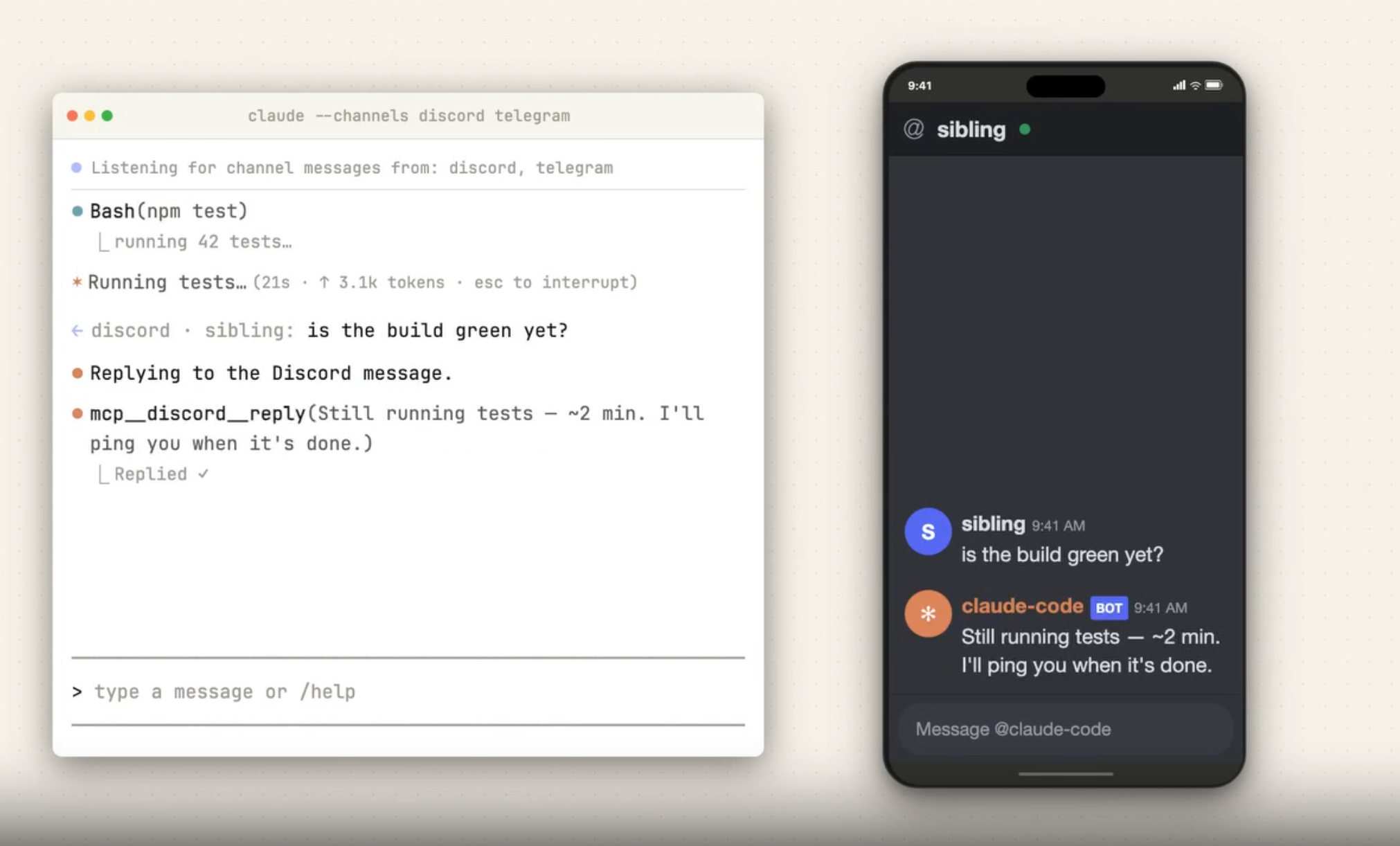
Claude Code just shipped a powerful new feature called Channels — a way to push messages into a running Claude Code session from external platforms like Telegram and Discord.
Imagine this: you start a long-running coding task, step away from your desk, and then send instructions to Claude from your phone via Telegram. Claude reads your message, does the work, and replies right back in Telegram. That's Channels.
What Are Claude Code Channels?
A Channel is an MCP (Model Context Protocol) server that pushes events into your running Claude Code session. It's two-way: Claude reads the event and replies back through the same channel.
Key features:
- Telegram & Discord support out of the box
- Bidirectional communication — send messages AND receive replies
- Background-friendly — works while you're away from the terminal
- Secure — sender allowlist ensures only you can push messages
Channels are currently in research preview and require Claude Code v2.1.80+.
Prerequisites
Before setting up, make sure you have:
# Check your Claude Code version
claude --version

# Install Bun if needed
curl -fsSL https://bun.sh/install | bash

# Verify Bun
bun --version
Step 1: Create a Telegram Bot
Open Telegram and find @BotFather.
/newbot\bot\ (e.g., \my_claude_bridge_bot\)Step 2: Install the Telegram Plugin
In your Claude Code session, run:
/plugin install telegram@claude-plugins-officialThis installs the official Telegram channel plugin from the Anthropic-maintained marketplace.
Step 3: Configure Your Bot Token
Run the configure command with your BotFather token:
/telegram:configure <your-bot-token>This saves the token to \.claude/channels/telegram/.env\ in your project.
TELEGRAM_BOT_TOKEN\ environment variable before launching Claude Code.
Step 4: Launch with Channels Enabled
Exit Claude Code and restart with the \--channels\ flag:
claude --channels plugin:telegram@claude-plugins-officialThis starts the Telegram plugin, which begins polling for messages from your bot.
Tip: You can enable multiple channels at once by space-separating them.
Step 5: Pair Your Telegram Account
/telegram:access pair <code>/telegram:access policy allowlistThat's it! You're connected.
How It Works in Practice
Once paired, here's the flow:
The terminal shows the inbound message and the tool call, but the actual reply text appears in Telegram.
Security Model
Channels take security seriously:
- Sender allowlist — only paired IDs can push messages
- Per-session opt-in — channels only activate with \
--channels\flag - Enterprise controls — Team/Enterprise admins can enable/disable via managed settings
Being in \.mcp.json\ alone isn't enough — a server must be explicitly named in \--channels\ to receive messages.
Permission Handling
If Claude hits a permission prompt while you're away, the session pauses until you approve locally. For fully unattended use, you can use \--dangerously-skip-permissions\, but only in environments you trust.
Quick Test with Fakechat
Want to try the channel concept before setting up Telegram? Use the built-in fakechat demo:
# Install
/plugin install fakechat@claude-plugins-official

# Run
claude --channels plugin:fakechat@claude-plugins-official

# Open http://localhost:8787 and start chatting
Enterprise & Team Setup
| Plan | Default |
|------|---------|
| Pro / Max (no org) | Available, opt-in per session |
| Team / Enterprise | Disabled until admin enables |
Admins can enable from claude.ai → Admin settings → Claude Code → Channels.
What's Next?
- Build custom channels for Slack, webhooks, or any system using the Channels reference
- Remote Control — drive a local session from your phone
- Scheduled Tasks — poll on a timer instead of reacting to pushed events
Channels turn Claude Code from a local terminal tool into something you can interact with from anywhere. Set it up once, and you've got an AI coding agent in your pocket.